0 $
No payment needed
- All available video quality settings
- No software time limit
- No watermark
- No advertising
 VCam
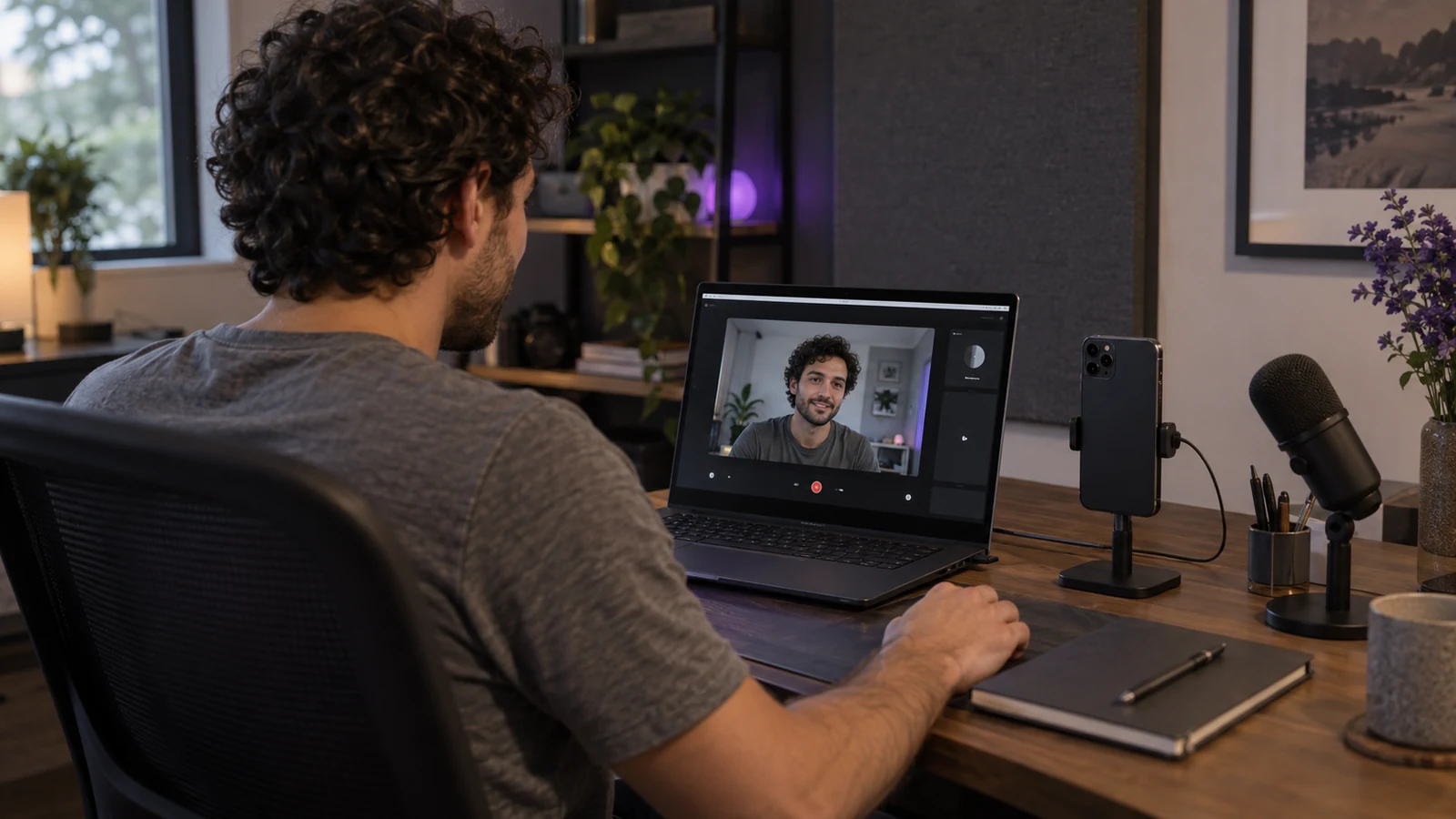
VCamVCam turns your iPhone or Android phone into a webcam for OBS, Zoom and video calls. Install VCam on Windows; your phone connects through its browser over Wi-Fi.
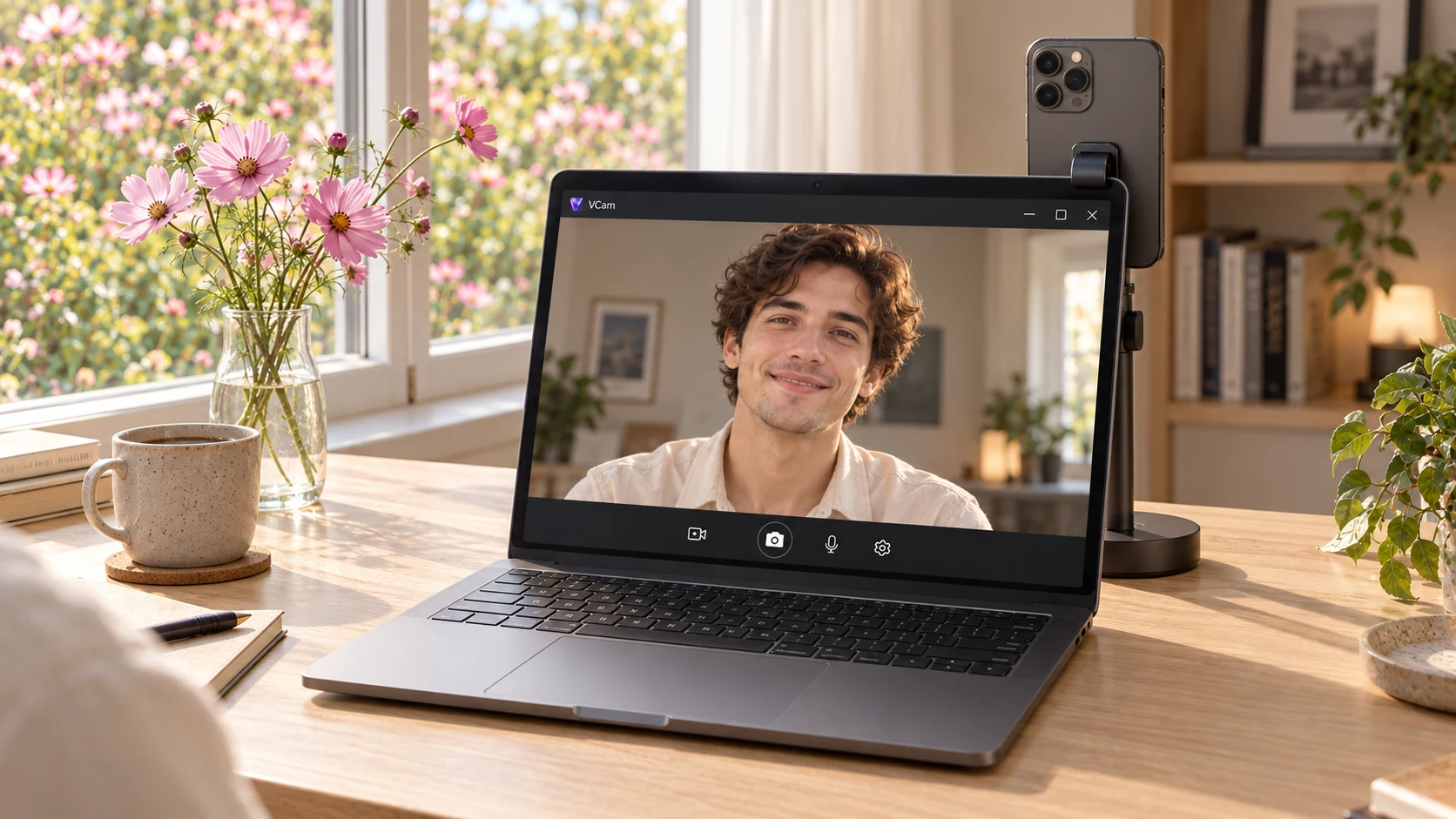
Available resolution, frame rate and controls depend on your phone and browser. VCam checks supported modes.
 Windows
 iPhone
 Safari
 Android
 Chrome
 OBS
OBS Zoom
ZoomSafari on iPhone. Chrome on Android.
A DirectShow virtual camera on Windows 10/11.
No subscription, ads or paid camera settings.
Change cameras, zoom, resolution and frame rate. Rotate or mirror the video. Available controls depend on the phone browser.
Scan the QR code or enter the one-time code, open the browser camera and allow access.
Enter a connection code →The video stream goes directly from your phone to your computer. VCam does not record or store your video on its server.
How VCam works →Connect the phone and computer to the same local Wi-Fi network.
Open the receiver and click Show QR code. It displays a QR code and a one-time connection code.
Scan the QR code, open the link and allow camera access in Safari or Chrome. Keep the page open and the phone unlocked.
Choose VCam in the camera settings of OBS, Zoom or another compatible Windows application. Select a separate microphone for audio.
VCam is a free Windows application that turns an iPhone or Android phone into a wireless webcam. Install the receiver on Windows, open the phone camera in Safari or Chrome, and select VCam in OBS, Zoom or another application that accepts DirectShow cameras.
Yes. All implemented features are free, with no ads, subscription, watermark or software time limit. The source code is published on GitHub. VCam is an independent project and is not affiliated with iVcam, DroidCam, Camo or Elgato.
No. Use Safari on iPhone or Chrome on Android. Open the QR-code link from the Windows app and allow camera access. You can also enter the eight-character connection code on the Connect phone page. Each code is valid for ten minutes and can be used once.
The receiver requires 64-bit Windows 10 or Windows 11 and administrator permission during installation. It provides a DirectShow virtual camera for compatible 32-bit and 64-bit applications, including OBS and Zoom. There is currently no receiver for macOS or Linux. Compatibility with every phone and application has not been tested.
VCam probes the camera and offers the resolution and frame-rate combinations it confirms. Up to 4K and 60 FPS are possible on supported devices, but 4K at 60 FPS is not guaranteed. Camera lenses and manual controls depend on the phone and browser.
Video travels directly between the phone and computer over an encrypted WebRTC connection. VCam does not record or store it on the server. The server serves the website and helps pair the devices. Both devices need the same local Wi-Fi network without client isolation; an internet connection is needed to open the site and pair.
The current version uses local Wi-Fi and transmits video only. It has no dedicated USB connection mode. Choose your computer microphone or a separate microphone for calls and recordings.
Keep the camera page open and the phone screen unlocked. The phone operating system can pause the camera when the browser moves into the background. You can minimize the Windows receiver while it is streaming.
The beta installer is not yet signed with a publisher certificate. Download it only from the official prodbyEDDY/vcam GitHub Releases page. Administrator permission is needed to register the virtual camera.